

Bring web pages and transparent HTML graphics into live production with easy setup, high-quality scaling, and efficient CPU/GPU use. Broadcast Browser for Windows connects to DeckLink, UltraStudio, NDI, and venue displays, with independent routing that lets you browse one tab while others stay on air.
Click a screenshot to expand it.
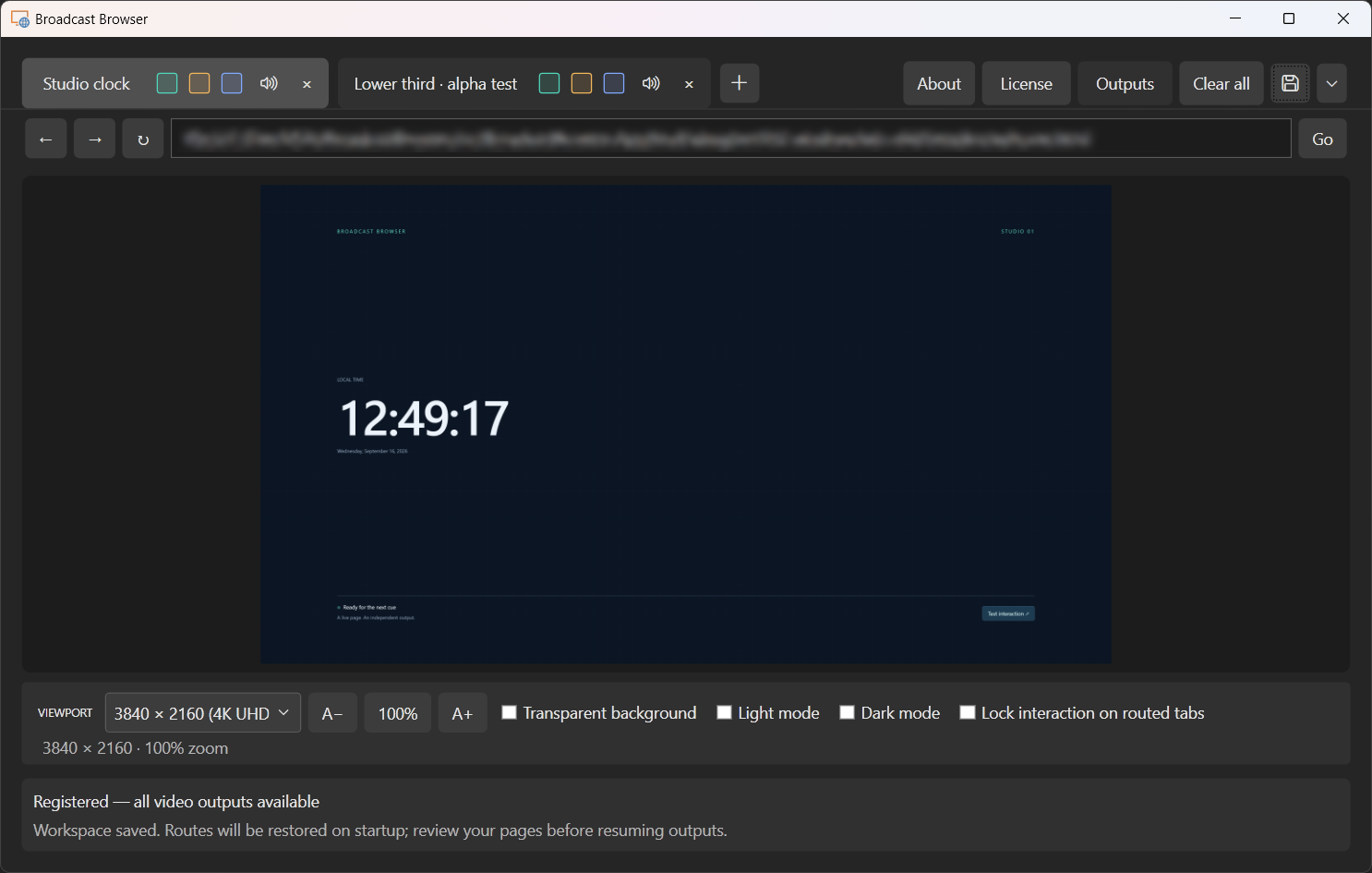
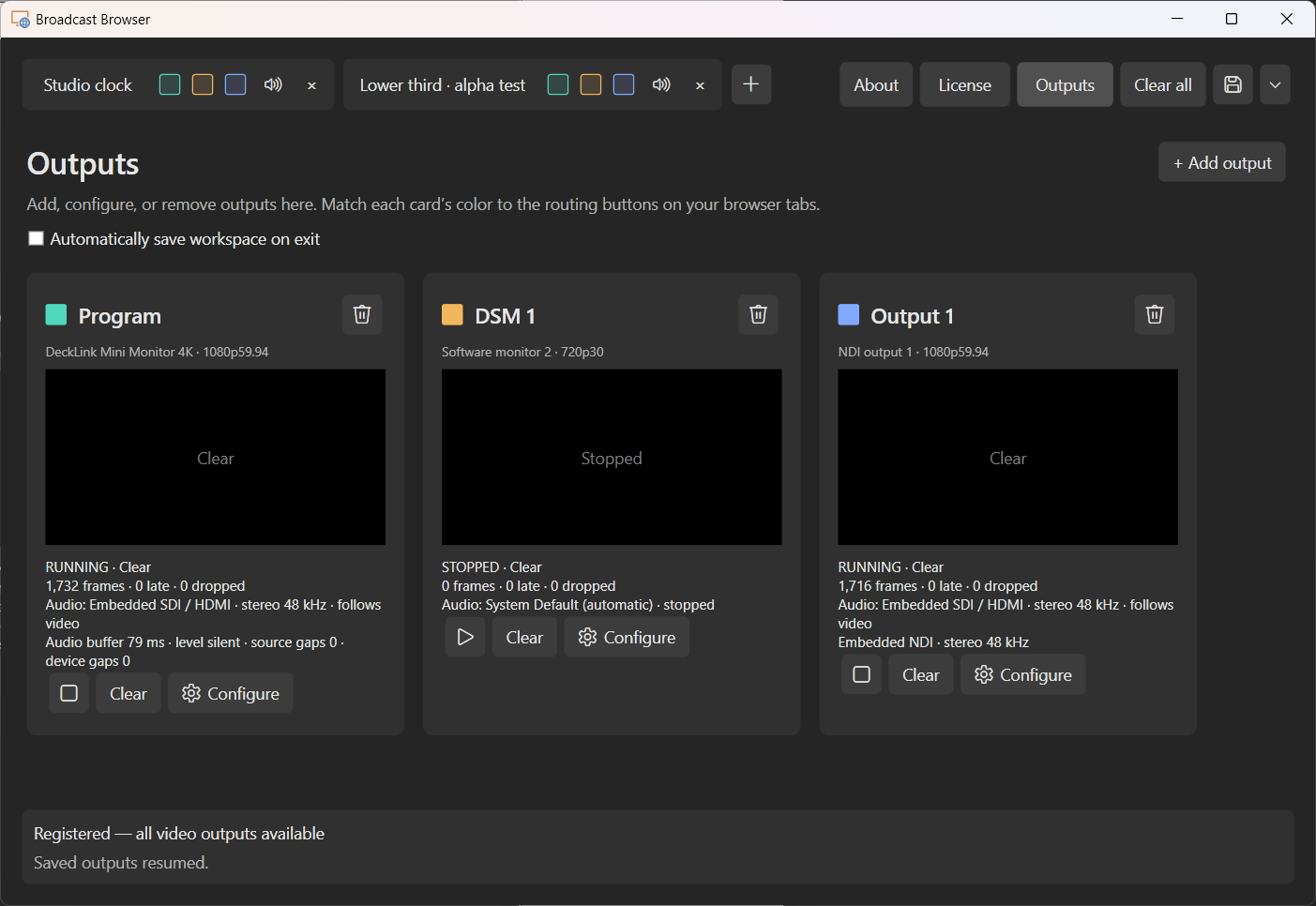
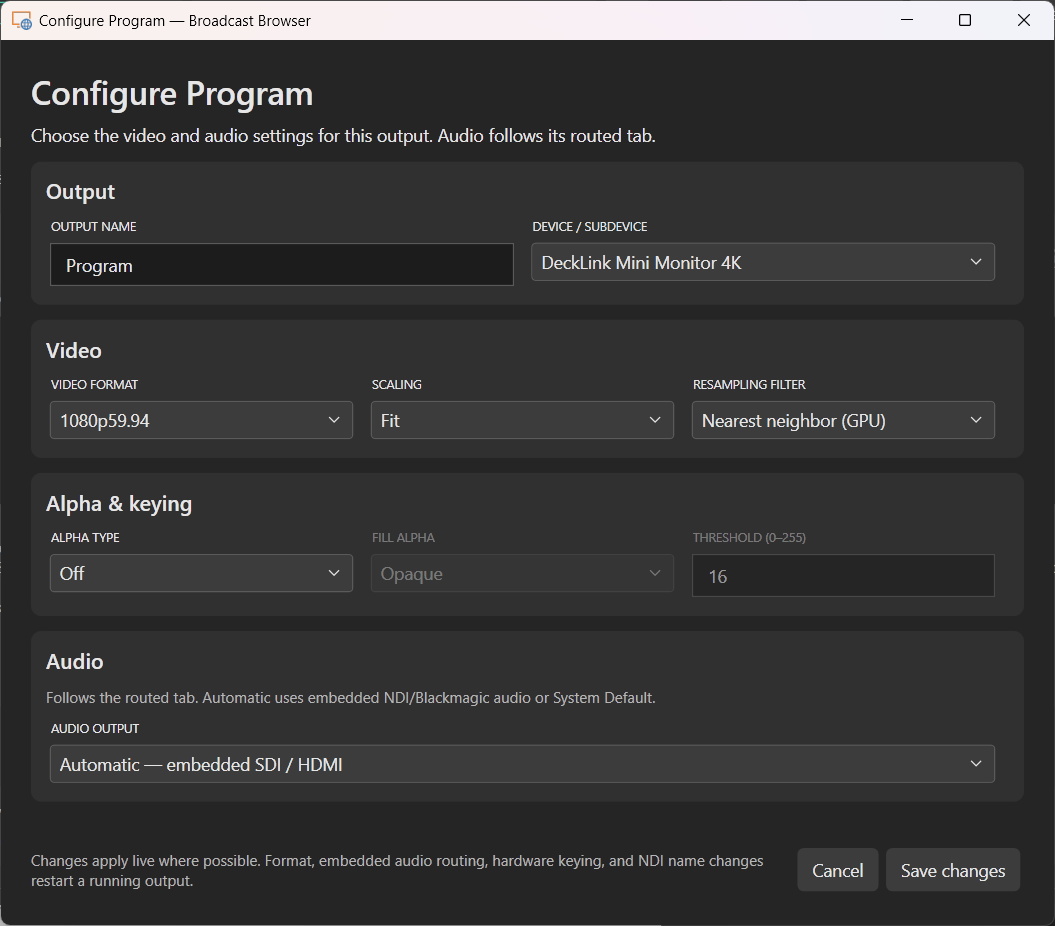
Get your content on screen, preserve the detail in your graphics, and keep processing overhead down. The controls you need are together in one production-focused browser.
Open a page, choose your output, and route it with a click. Named destinations and matching colored buttons make the setup easy to follow, and saved workspaces help you get ready for the next show.
Preserve transparent backgrounds, soft edges, and translucent elements through rendering and scaling. Send alpha graphics through compatible Blackmagic keying outputs, or use AlphaLuma for a single-connection luma key.
Connect to supported Blackmagic video hardware or send named NDI streams over your network. Give each destination its own source and format to fit your production system.
Keep text, logos, and graphics looking clean when source and output sizes differ. GPU-accelerated filters include high-quality bicubic scaling, with independent sizing and filtering for each destination.
Reuse unchanged frames and skip unnecessary scaling to keep processing overhead down and leave more room for the rest of your production. Actual usage depends on page content, output formats, and hardware.
Prepare the next tab while others stay on air. Send one tab to several destinations, change each route independently, and use interaction lock to protect live pages from accidental operator clicks.
Configure each destination with its own video format and scaling. One source can feed several output sizes without forcing every screen to use the same format.
Available formats and keying depend on the device, driver, and hardware profile. Check your intended output and receiving equipment together before a live production.
Open online content or local HTML pages for lower thirds, clocks, information screens, and other browser-based graphics.
Save your tabs, output configuration, and routing for the next session. Give destinations practical names like Program, Lobby, or Presenter so the setup reflects the way your crew works.
Previously running outputs can resume at startup when their devices and formats are available. Review page readiness before going live: restoring a workspace does not restore form entries or guarantee that a website has finished signing in.
Use software monitor windows to rehearse routing before connecting the audience-facing outputs.
Open each page in a tab, set up the graphics, and check the browser preview. Keep separate tabs ready for the different parts of your show.
Add and name your outputs, choose video and audio settings, and start the destinations you need.
Use the colored routing buttons to send a tab to an output. Assign the next tab when it is time to change, or Clear the destination while keeping it running.
Broadcast Browser runs on Windows x64 with a Chromium-based browser. Blackmagic Desktop Video is needed only for DeckLink or UltraStudio output; connected displays and software monitors work without Blackmagic hardware.
Output capacity depends on your computer, page complexity, video formats, and connected equipment.
Workspace saving and software monitor windows are available without a license. Registration unlocks GPU display, Blackmagic, and NDI video outputs.
View pricing and purchase Broadcast Browser, or contact us for help matching it to your production setup.
Tell us what you want to put on screen, which outputs you use, and how you run your show. We can help you explore where Broadcast Browser fits.