
Workflow reference
Sources, workspaces & recording
Use the controls and worked examples together. Individual sections identify edition-specific tools.
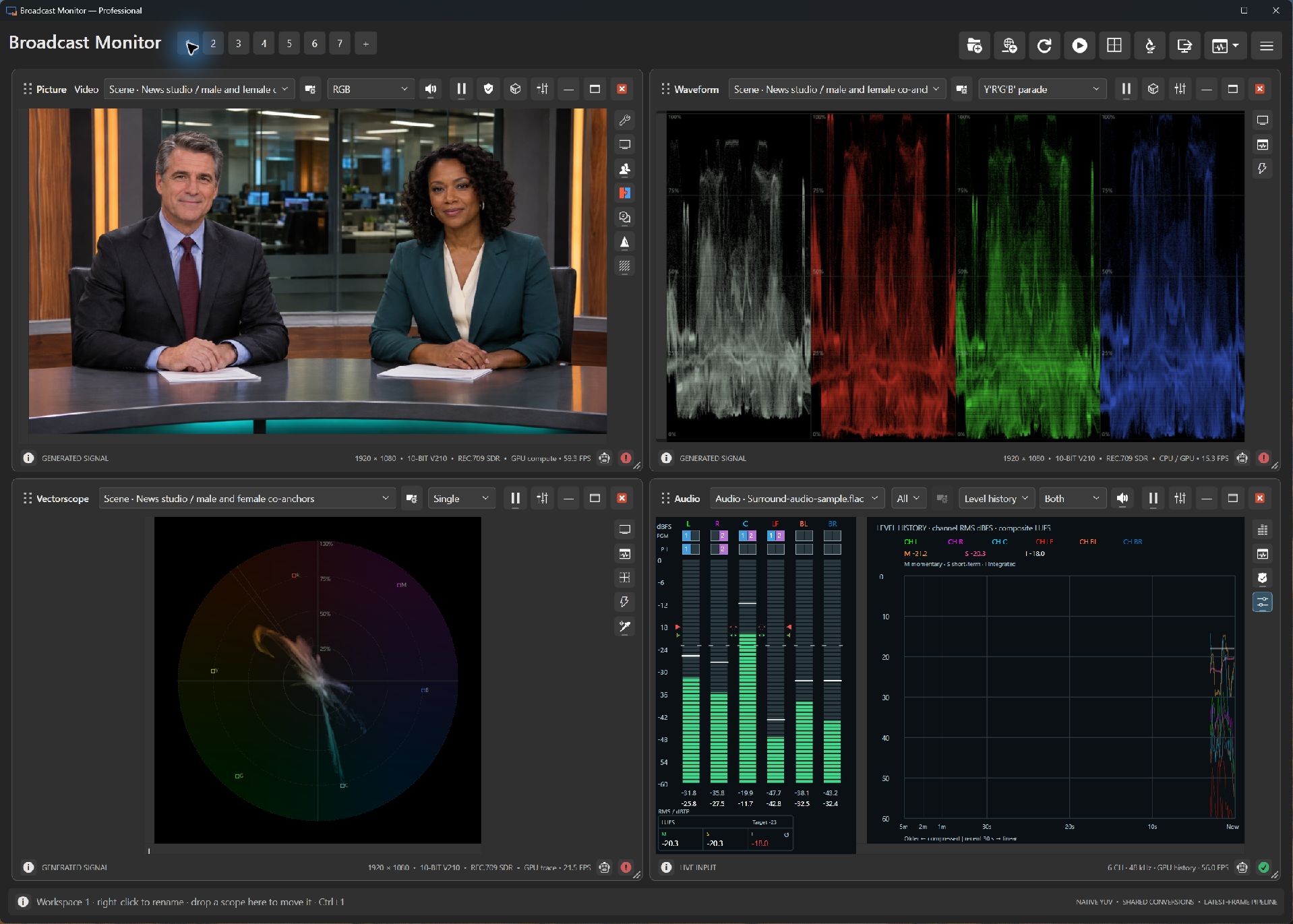
Build the monitoring station your crew needs.
ExpressProfessionalRoute sources to independent views
Give each view its own source and purpose. Inspect one input with several different tools, or arrange views around the signals you need to watch. Keep the information for your role in front of you.
Save the setup for the next show
Save window layouts, input routes, scope types, and scope settings as a workspace. Express and Professional also support multiple workspace tabs. Build a configuration for rehearsal, another for the show, and a startup workspace for the monitoring arrangement you use most.
Learn before the cameras arrive
Choose Generated from any input list for numeric test patterns and bundled scenes: concerts, sports, news studios, conferences, everyday subjects, camera matching, lighting faults, and scope practice. Use the stacked-screens icon to apply a source to compatible panes.
Alt+arrow moves through the shared generator. Input labels and Open sources thumbnails follow the active scene; catalog thumbnails retain their preset names. The scenes are fixed generated photographs, with alignment tones rather than event sound.
Studio-pair variants demonstrate exposure and color casts; digital chip charts provide known encoded signal values; a synthetic soft-knee variant illustrates highlight compression. Camera controls do not alter these stills. Explore the practice examples below.
Look closer. Listen carefully. Keep your place.
ExpressProfessionalUse the right-aligned stacked-screens icon beside an input source to use it in all compatible scopes. Shift-selecting a source does the same.
Production work moves between the whole show and the smallest detail. Focus assistance, flexible audio listening, and independent playback controls help you investigate without rebuilding your workspace.
Make focus easier to judge
Express and Professional add adjustable detail enhancement to the RGB picture view, including grayscale. Boost fine edges to make focus easier to assess, and raise the threshold to reduce the enhancement of low-level noise.
The adjustment affects the displayed picture, leaving source samples and measurement scopes unchanged. A composed output that includes this picture pane also includes its enhancement.
Give one view your attention
Zoom the picture up to 16×, pan to inspect a detail, and double-click to return to fit. Arrange and Tile organize panes around their content, with layouts that adapt as the workspace changes size.
Magnetic snapping aligns moving or resizing scopes to workspace and neighboring scope edges, preserving the same margins and gaps as Arrange. Hold Control to move freely, or disable Snap to edges per scope. Detached windows also snap to monitor work-area and neighboring window edges. The right-click > Replace scope submenu lets you choose a scope available in your licensed edition while preserving its layout and compatible sources.
Double-click unused scope background to hide or restore only that pane's controls, or right-click the picture or graph and toggle Show scope controls beside Hide/Show status pane. Its check mark shows whether controls are visible, and it remains available when the data view fills the pane. Double-click the main application background or title for global Minimal UI. Individual hidden-control preferences save with the workspace.
Maximize a pane for a closer look, then return to your layout. When program output is stopped, hidden scope displays suspend their analysis and rendering while source connections and file playback stay in place. Enabled audio listening continues.
Restore the layout to resume current measurements. Panes required by running outputs keep rendering, including panes on other workspace tabs.
Review a clip with the same tools
Professional supports local video and audio-only files, with independent playback controls for each source. Play, pause, stop, seek to a moment, or let the clip loop while several scopes examine the same source. Seeking a video while paused displays a preview frame. Focus a file-fed graph and use Ctrl+P for play/pause or Alt+Left/Right to skip five seconds; panes sharing that source follow its transport. Review music, voiceovers, and show cues in the audio tools without needing a video track.
In source configuration, Auto, Hardware, and Software decoder choices apply to the shared file source and save with the workspace. Auto adapts to the workload; explicit choices bypass adaptation. Requested and effective decoder status show which path is being used. Changing decoder retains position, pause, and loop state.
Playback decodes ahead into a bounded buffer to help absorb variations in decoding time. This supports steadier delivery while you inspect the footage; achievable playback still depends on the file and your computer.
With Express or Professional, listen to selected audio channels through the default Windows playback device while monitoring their levels. Choose the listening mix independently of the channels used for the stereo phase display, and change routing without reopening the audio device. Explore the audio tools.
Share the monitoring view.
ExpressProfessionalProfessional Output Setup can send a complete workspace, an individual scope full screen, or a direct video input to compatible DeckLink/UltraStudio or AJA hardware, NDI, experimental DJP Transport, or a desktop display. Each destination selects its own video source, format, and optional audio. The cascading Video source menu groups Entire workspace and individual scopes under Workspaces; Inputs uses the same source categories and generated-pattern groups as the scope input selectors. A check mark identifies the current selection. Direct inputs need no scope pane: they fit with preserved aspect ratio and black bars as needed, and repeat or drop frames to match the output rate without motion interpolation. NDI output requires the optional NDI Runtime. Available output formats depend on the device and configuration.
Check computer and capture requirements before planning your station.
Turn a multiviewer cell into a source.
ExpressProfessionalProfessional can create cropped video inputs from a shared multiviewer feed. Choose a grid cell manually or detect consistent white/gray separators and select several cells. Name each extracted source, adjust its edge crop, and save it with the workspace.
Cropped inputs preserve native video precision and share the original capture session. They carry video only; select the original input for audio.
Connect the source. Choose what leaves the station.
ExpressProfessionalUse compatible Blackmagic capture, Windows cameras, network streams, NDI, and standalone audio inputs. Professional adds local media-file playback. Experimental DJP Transport exchanges local video and audio with compatible Windows applications; AJA integration remains experimental and depends on the device, driver, and format.
In Output Setup, add destinations and choose each row's video source, format, and optional audio. Workspace outputs follow layout, pane membership, position, size, stacking order, sources, and scope settings live. A single pane fills the raster without chrome; multiple panes include borders and labels. An individual scope fills the output without pane borders or labels, including its enabled overlays, such as captions. Offscreen capture keeps the chosen pixel dimensions after resizing; compact control layouts are clipped to that viewport. Removing the selected scope clears that output to black. Direct inputs include shared source LUTs without Picture-pane zoom or overlays; missing input signal produces black until reception resumes. Stop an output before changing its selection or removing it. Closing Output Setup leaves outputs running. Escape stops a full-screen desktop output.
The current output path supports progressive SDR video and optional 48 kHz stereo audio from source channels 1–2 (mono duplicated). Desktop displays are video only. It does not provide interlaced output, HDR signaling, multichannel audio routing, or frame-accurate audio/video synchronization.
Set up sources and keep the session.
ExpressProfessionalUse Add File on the main toolbar in Professional for video, audio, or still images. Transport groups per-file controls; closing the popup leaves playback running. Removing a source releases it. App settings sets the loop default for new file sessions; running sources retain their loop setting.
Add Network Source is available on the toolbar and in input lists. RTSP/RTSPS and SRT use compatible external FFmpeg. Guided SRT/RTMP receiving checks installed FFmpeg and offers installation controls; RTMP receiving requires Express or Professional. Choose Test to check a source before adding it.
App settings also controls signal compliance and optional output image sharing. Paid-edition compliance indicators retain observed failures until reset; amber identifies waiting or incomplete evidence. These checks describe observed samples rather than certify the entire signal.
App settings → Plug-ins opens Premiere Pro and DaVinci Resolve (Beta) setup. Close the host before installation or removal. Premiere sends video and secondary audio; Resolve is a video-only Rec.709 SDR beta with placement and render-cache limits described in its setup tab.
Saving over a workspace keeps one previous generation in a .bak file. Save current as startup workspace controls what returns on launch. The update restart prompt offers to save the current setup before closing.
Keep your hands on the keyboard.
ExpressProfessional- Ctrl+Tab moves to the next visible pane; Ctrl+Shift+Tab moves to the previous one.
- In Express and Professional, Ctrl+Left/Right selects the adjacent workspace, and Ctrl+= creates a workspace. Ctrl+1–9 selects the first nine; Ctrl+0 selects the tenth. Focused Picture inspection can take precedence over modified number keys.
- Alt+Left/Up selects the previous generated pattern or photograph; Alt+Right/Down selects the next. This changes every pane using the shared generated source.
Picture and scope inspection shortcuts · Audio display shortcuts
Keep a confidence recording.
ExpressProfessionalExpress and Professional include Add scope > Recorder. Choose a video source and an independent audio source, enter a new filename, and press Record. A compact filmstrip retains about 15 seconds of sampled picture history; Stop finalizes the file. Settings save with the workspace, but recording never restarts automatically.
Choose the format your job needs
Recorder uses external FFmpeg. Open FFmpeg setup from Recorder or App settings to detect or select an installation. Available codecs, single-file containers, and pixel formats follow that build. Hardware encoders are checked on this computer, and the selected recording combination is tested before the destination is opened.
Leave Scale off to retain source dimensions. Choose source audio rate or a supported rate from 8 to 384 kHz, plus Stereo mix, Original channels, or First two channels. New panes prefer lossless FFV1 with Auto pixel format, original audio channels, source sample rate, and 32-bit PCM when available.
Record the input before display processing
Recorder reads decoded native frames before source LUTs and scope overlays. Auto prefers source precision, chroma, and alpha supported by the encoder; codec, pixel-format, conversion, and scaling choices can reduce fidelity. Available color and PQ/HLG tags are passed to FFmpeg.
A fixed video clock and approximate arrival-based audio timing make this confidence recording rather than frame-accurate archival capture. Source clocks, interlace signaling, captions, ancillary packets, and mastering HDR payloads are not recorded. Signal loss, source changes, or encoder overload stop recording; inspect partial files after errors.
Practice on the same pixels. See what changes.
ExpressProfessionalExposure and color casts
The neutral studio pair and its synthetic variants share the same framing. Compare -2-stop exposure, +2-stop hard clipping, and warm, cool, green, or magenta casts in Picture, Waveform, RGB Parade, and Vectorscope. The +2-stop soft-knee variant compresses highlights smoothly; compare the retained variation against the clipped version.
These are illustrative linear RGB transformations, not camera profiles or Kelvin settings. Missing detail in the original SDR photograph cannot be recovered.
Digital chip-chart references
Tabletop and portrait-pair samples share identical procedural 32-chip panels: broadcast colors, custom muted colors, grayscale, and near-black/white steps. Inspect patch interiors for known native 10-bit values. Percentages describe encoded Rec.709 signal, not reflectance: 18% signal is Y=222, not an 18% reflectance card.
The panels are digital composites, not photographed commercial charts. Photo backgrounds remain generated 8-bit SDR; 4:2:2 chroma averaging affects patch edges.
Subjects for different questions
Use the close-up skin pair for relative face inspection, the green-screen presenter for unevenness and spill, fine textures for 1:1 inspection, and the foggy exterior for closely spaced midtones. Studio and reporting includes both the original single-anchor scene and the newer male/female co-anchor newsroom.
SDR scenes are delivered as legal-range 10-bit Rec.709. HDR photographs are synthetic PQ/HLG encodings of SDR originals, not native HDR captures. Use numeric test patterns for calibrated reference levels.