
Scope guide · Sound & timing
Audio
Follow levels, listen to a chosen mix and inspect phase, waveforms and history. Professional adds spectra, waterfalls and Surround.
ExpressProfessionalLearn & Reference / Scope library / Audio
Which channel or part of the sound changed?
Add this view from Add scope > Audio, then choose the input you want to inspect. Use the pane's i button for its in-app reading guide.
Read this example.
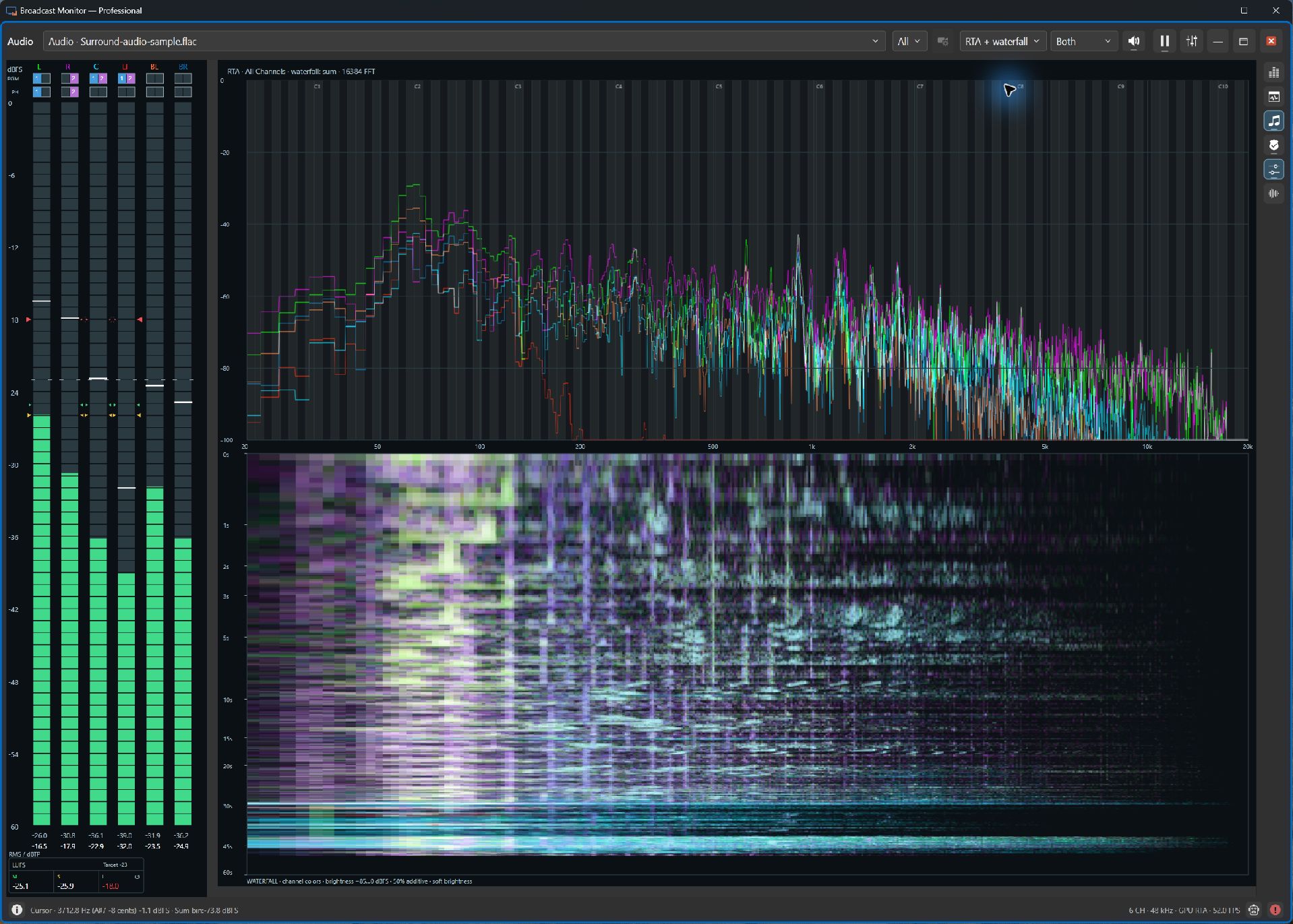
- L, R, C, LF, BL and BR identify the six reported channels.
- PGM selects listening and loudness contributions; PH selects phase-analysis buses.
- Spectrum traces show channel frequency content; the waterfall puts recent energy at the top and older energy below.
Try it yourself.
- Select an audio source, or add an audio-only file in Professional. Choose All channels to analyze.
- Assign PGM and PH buses. Enable Listen to hear the selected mix.
- Explore Phase, Waveform and Level history; Professional also offers RTA + waterfall and Surround.
Useful controls.
- Hold a channel label to solo temporarily.
- Waveform shows a rolling 20 ms window; Level history retains up to five minutes.
- Analyze the first N channels or All. Quality cards assess those analyzed channels.
Use listening to interpret meter and quality-card evidence. Photographic website examples identify their separate generated or file audio sources in captions.