
Scope guide · Production tools
Recorder
Choose video and audio sources, inspect filmstrip history and record with encoders in your installed FFmpeg.
ExpressProfessionalLearn & Reference / Scope library / Recorder
Can I retain a confidence recording while monitoring?
Add this view from Add scope > Recorder, then choose the input you want to inspect. Use the pane's i button for its in-app reading guide.
Read this example.
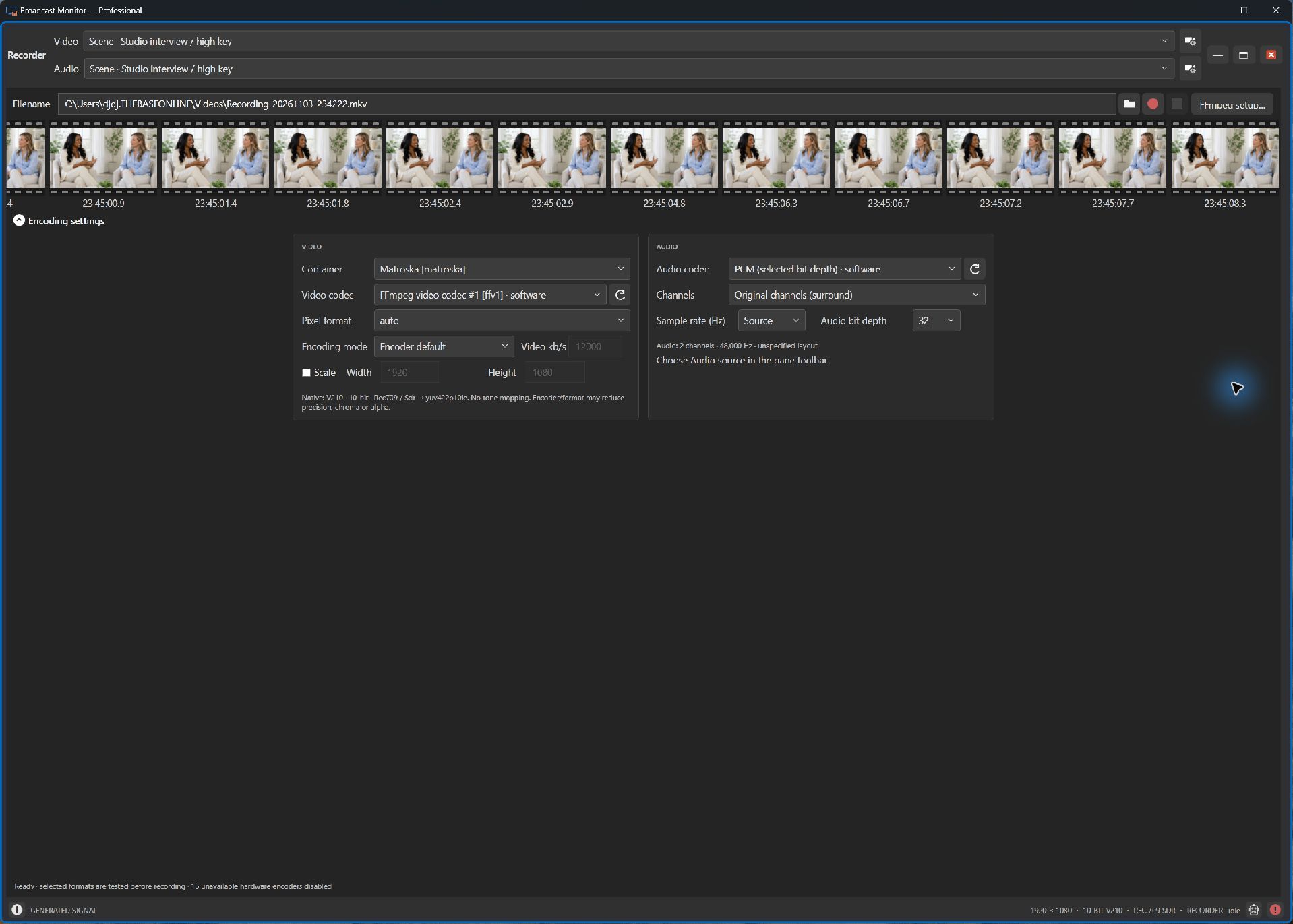
- Filename, Record and Stop sit above history. Stop finalizes the file for playback.
- Two filmstrip samples per second provide a recent picture overview.
- Video and audio settings choose format independently. Read codec, pixel format, channels and sample rate before recording.
Try it yourself.
- Select video and optional independent audio sources.
- Open FFmpeg setup; choose a compatible codec/container and new filename.
- Record, monitor status and Stop to finalize; check the completed file.
Useful controls.
- Scale enables exact output dimensions; leaving it off keeps source size.
- Audio offers Stereo mix, Original channels or First two channels.
- New panes prefer available FFV1/Auto, original channels, source audio rate and 32-bit PCM.
Recorder uses decoded native frames before source LUTs and overlays. Choose encoding and scaling to suit fidelity and storage needs.