
Scope guide · Color & matching
Comparison Scope
Keep two inputs together, align corresponding subjects and compare picture, exposure and color with independent preview and measurement views.
ProfessionalLearn & Reference / Scope library / Comparison Scope
Why does camera two look different?
Add this view from Add scope > Comparison Scope, then choose the input you want to inspect. Use the pane's i button for its in-app reading guide.
Read this example.
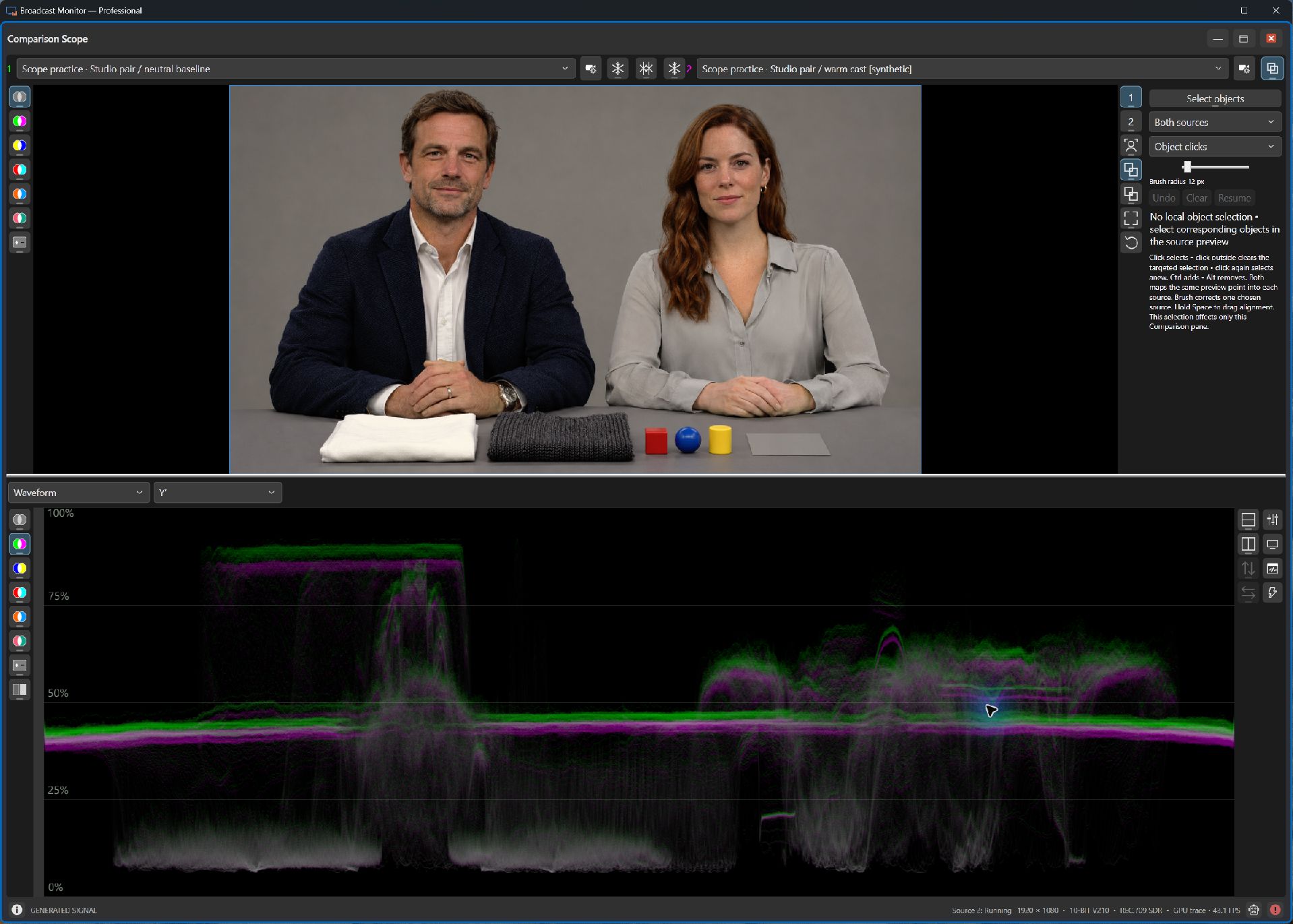
- Green and magenta Y′ traces separate where the neutral and warm variants differ. The high plateau at left includes the white fabric; the broad middle band includes the gray background and table.
- Use Mix, Difference, Split or Side-by-side to make the question easier to see.
- Compare the aligned subjects in Waveform or Vectorscope; upper preview and lower graph display choices are independent.
Try it yourself.
- Choose two controlled studio variants, or two camera inputs.
- Align features, use Match faces for a suitable detected person, or Select objects after local-model setup.
- Choose Waveform + Vectorscope to inspect exposure and chroma together. Freeze one input to retain a reference.
Useful controls.
- Preview and graph palettes save independently. Side-by-side presents complete source views.
- Hold top-row 1 or 2 over a focused graph for temporary single-source inspection.
- Match faces aligns eye midpoint and face size. Compatible camera controls can attach beside either input.
Comparison uses the latest available frames. A steady subject helps when capture paths have different delays.