
Scope guide · Color & matching
Quad Balance
Bring channel relationships into a four-quadrant view, then inspect one region while retaining a Picture reference.
ProfessionalLearn & Reference / Scope library / Quad Balance
Which channel relationship needs attention?
Add this view from Add scope > Quad Balance, then choose the input you want to inspect. Use the pane's i button for its in-app reading guide.
Read this example.
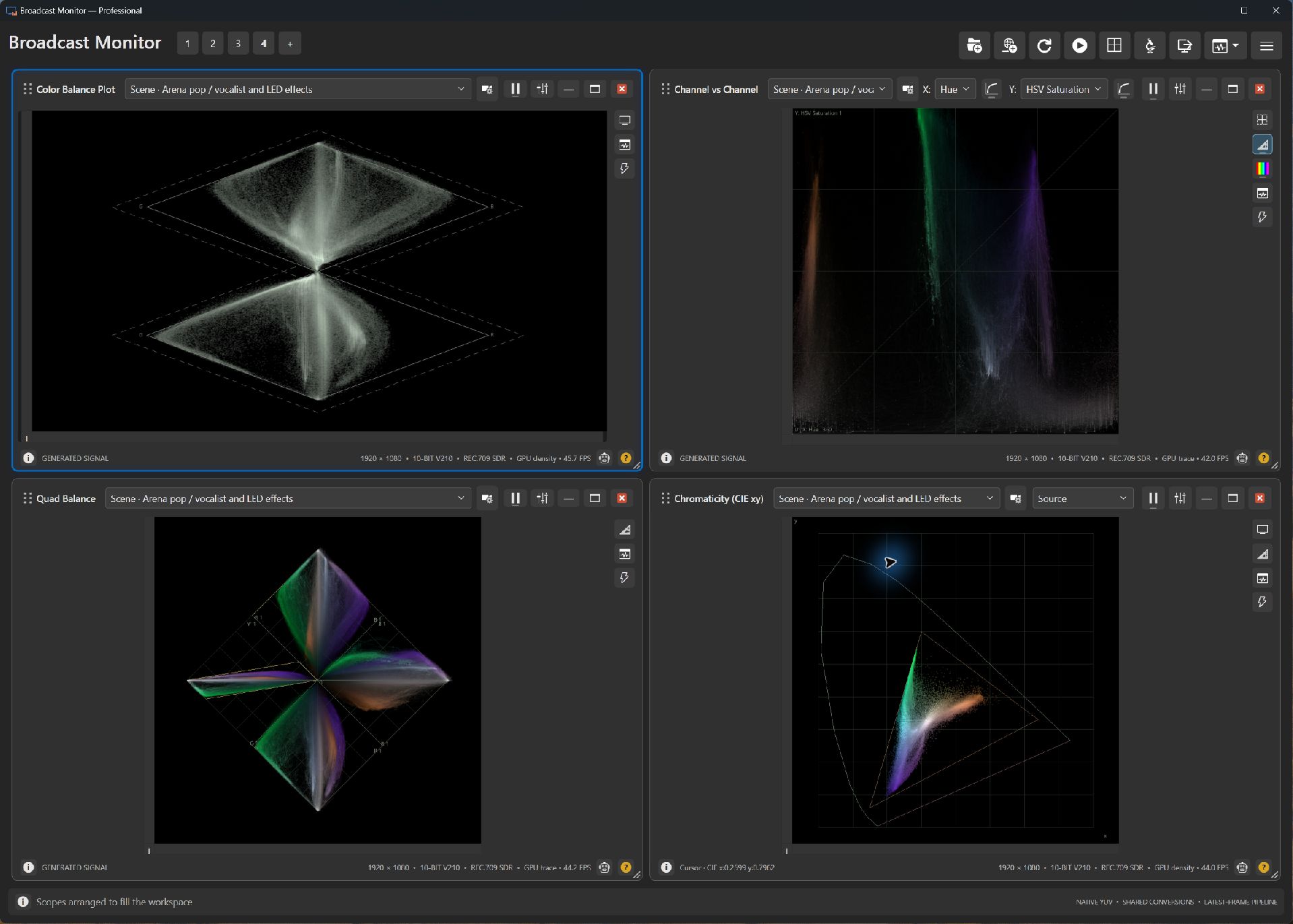
- Read the axis labels around the four channel-pair regions.
- Vivid stage lighting creates strongly colored distributions; relate them to Picture.
- Held-key inspection enlarges a quadrant while preserving the saved presentation.
Try it yourself.
- Compare the concert and a neutral studio sample.
- Hold a corner numpad key to inspect a quadrant, then release.
- Compare the same source in Vectorscope and Color Balance Plot.
Useful controls.
- Numpad 2/4/6/8 applies 2× inspection with temporary 45-degree rotation.
- Corner keys inspect quadrants; 5 inspects the center with current rotation.
- Trace, references and shared regions refine inspection.
Use a known neutral subject for matching rather than assuming that the entire colored stage should balance neutrally.