
Scope guide · Picture & exposure
Picture
Keep the image at the center of your decisions, then use exposure aids and inspection to investigate the part that matters.
FreeExpressProfessionalLearn & Reference / Scope library / Picture
Is the picture telling the whole story?
Add this view from Add scope > Picture, then choose the input you want to inspect. Use the pane's i button for its in-app reading guide.
Read this example.
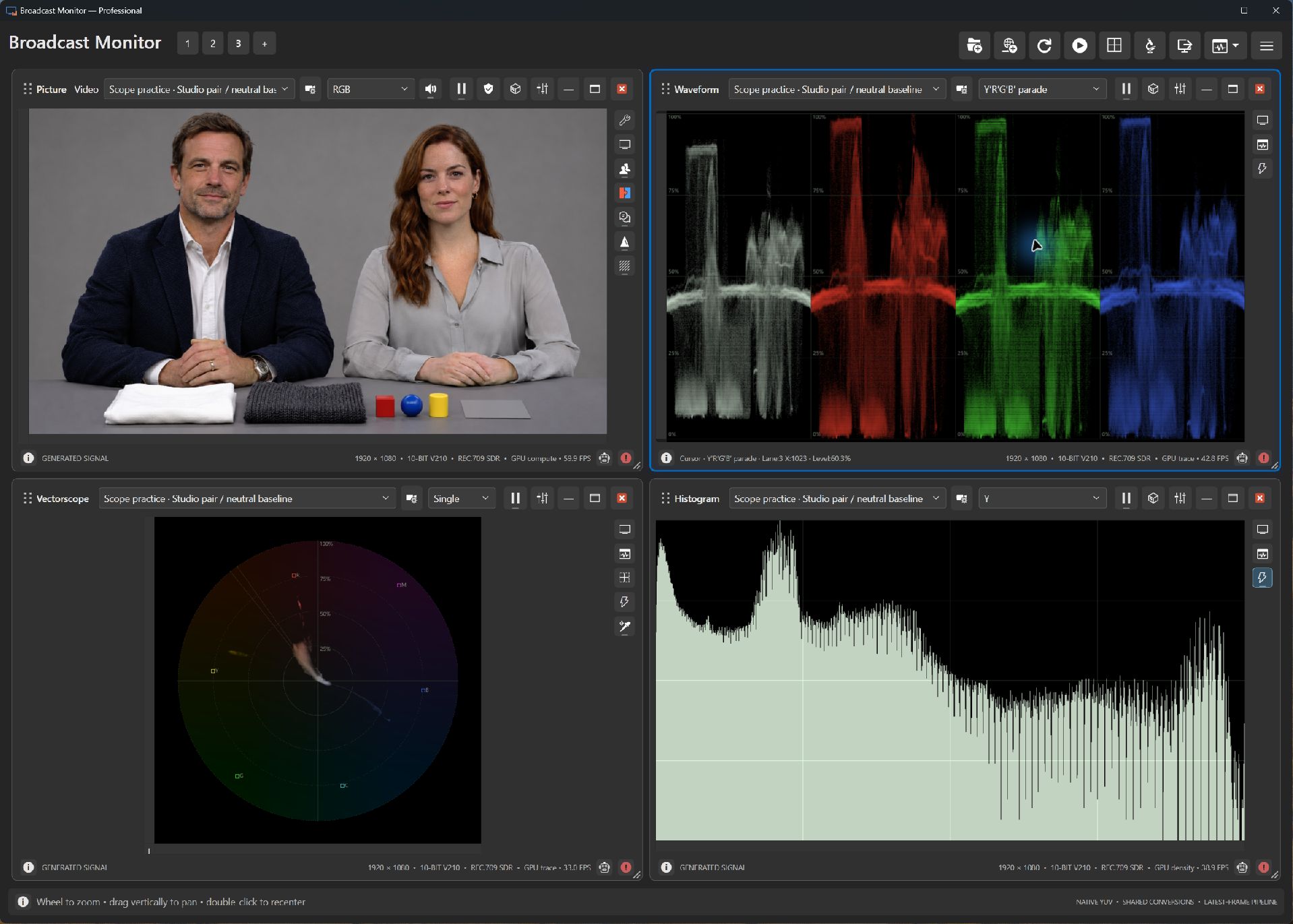
- Compare faces, the white fabric, dark jacket and gray background. Each contributes a different level range.
- The dark jacket and textured cloth provide shadow detail beside brighter clothing and props.
- Return from inspection to ordinary RGB after an adjustment to judge the whole shot.
Try it yourself.
- Add Picture and choose Generated > Scope practice > Studio pair / neutral baseline.
- Choose a false-color display. Compare faces and white fabric with its scale.
- Return to RGB, zoom into a face, pan to the fabric, then double-click to fit.
Useful controls.
- Display selects RGB, component and exposure views. Tools groups Pan, Pixel Inspector and available analysis tools.
- Express and Professional add focus enhancement, pixel inspection and held-key face zoom.
- Professional adds source LUTs, shared regions and local object selection after model setup.
A source LUT changes the processed signal used by supported measurements. Detail enhancement is a viewing adjustment. Choose each deliberately.